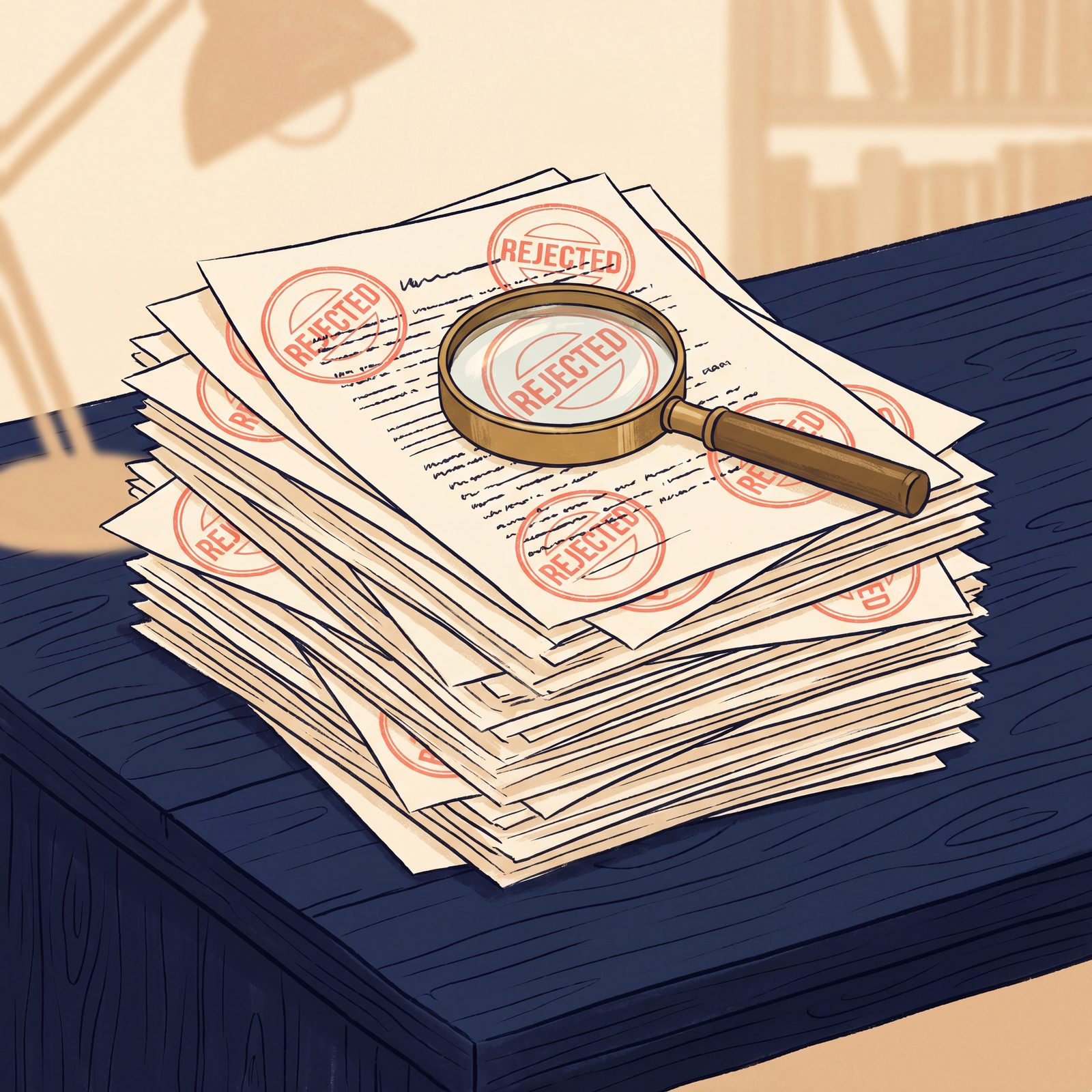
You uploaded your manuscript. You waited. And then IngramSpark sent back something like this:
“Your file does not meet our specifications. Please review the rejection email for details.”
No specifics. No line numbers. No “your TIC is too high on page 42.” Just a cold rejection and a link to a 47-page PDF specification document that reads like it was written by IRS auditors.
I’ve been an indie author for six years. I’ve had files rejected for ten different reasons across four platforms. I built BookReady so I would never have to manually decode another rejection email. Here is what actually triggers IngramSpark’s auto-rejection, in plain English.
1. RGB color profile in any image
This is the number one rejection cause and almost nobody warns you about it. Canva exports RGB by default. Photoshop exports RGB unless you specifically convert. Affinity Publisher does the same.
IngramSpark’s print pipeline expects CMYK color profiles. Specifically, it expects the U.S. Web Coated (SWOP) v2 ICC profile or the GRACoL2006_Coated1v2 profile. If your file uses Adobe RGB or sRGB, the printer rejects the whole job.
The error you might see: “Color space not supported” or “Embedded ICC profile incompatible.”
How to check: open your PDF in Adobe Acrobat Pro, go to Tools → Print Production → Output Preview. If you see RGB anywhere, you have a problem.
How to fix it free: drop the file into the BookReady scanner. It detects RGB color profiles and gives you a CMYK-converted file in 30 seconds. Adobe Acrobat Pro charges $240 a year to do the same conversion.
2. PDF/X-1a non-compliance
IngramSpark’s accepted print formats are PDF/X-1a:2001 and PDF/X-3:2002. Most PDFs from Word, Pages, Affinity, and Vellum are plain old PDF 1.4 or 1.7. They look identical visually but the print pipeline can’t read them.
The error you might see: “PDF version not supported” or “Transparency must be flattened.”
PDF/X-1a is essentially a stricter PDF that:
- Has all fonts embedded
- Has no transparency (it’s flattened)
- Has CMYK colors only
- Has TrimBox and BleedBox metadata set
- Is at PDF version 1.3 or 1.4
You can convert in Adobe Acrobat Pro, or use the BookReady scanner which converts to PDF/X-1a automatically.
3. Total Ink Coverage above 240 percent
This one rejects more files than anything else and almost nobody understands it.
Total Ink Coverage (TIC) is the sum of all four CMYK ink percentages on a single point. Pure black on screen looks like one color, but it’s often defined as 100 percent cyan, 100 percent magenta, 100 percent yellow, and 100 percent black. That’s 400 percent TIC. IngramSpark’s max is 240 percent.
Why it matters: 400 percent TIC creates so much wet ink that pages stick together coming off the press. The printer rejects it before it ever runs the job.
If you used Affinity Publisher’s “Rich Black” preset, you almost certainly have this problem.
How to fix: replace rich black with composite black at 5/5/5/95 (TIC 110 percent) or pure K-only black. The BookReady scanner auto-flags any TIC violations.
4. Unembedded fonts
Every font in your PDF must be embedded so IngramSpark’s printer can render it without having the font installed locally. If you used a Google Font in Word and the font is referenced but not embedded, your file will be kicked back.
The error you might see: “Missing font: [name]” or “Fonts not embedded.”
How to fix: open your PDF in Acrobat Pro → File → Properties → Fonts tab. Anything not labeled “Embedded” is the problem. Or run it through the BookReady scanner which auto-embeds via Ghostscript.
5. Image resolution below 300 DPI
Print needs higher resolution than screen. Anything below 300 DPI (or PPI in some tools) will print blurry. IngramSpark’s auto-checker rejects most files with images below 200 DPI and warns at 300.
The error you might see: “Image resolution too low for print quality.”
The trap here is that an image can look great on screen at 72 DPI and still be way too small for print. A photo from your phone is usually 1500 by 2000 pixels, which is fine for a 5 by 7 inch print at 300 DPI but starts to fail around 6 by 9 inches.
How to fix: use higher-resolution source images, or have the scanner upsample low-resolution ones automatically.
6. Odd page count
IngramSpark prints book interiors as signatures (folded sheets that hold 4, 8, or 16 pages). Your final page count must be even. Odd-page-count files get auto-rejected immediately.
The error you might see: “Page count must be even.”
How to fix: add a blank page at the end. The BookReady scanner detects odd page counts and inserts a blank page automatically.
7. Bleed not set or set incorrectly
If your book has any image, color block, or design element that touches the edge of the page, you need 0.125 inches of bleed on every external edge. IngramSpark requires this to compensate for the small variance in their cutting process.
The error you might see: “Bleed not detected” or “BleedBox missing.”
If you don’t have edge-bleeding artwork, you can submit without bleed. But if you do, missing bleed is an instant rejection.
How to fix: in your design software, add 0.125 inches of bleed on all external edges, then export with the BleedBox metadata. The BookReady scanner detects missing bleed and adds it where possible.
8. Wrong trim size
You picked 5 by 8 in IngramSpark’s setup page but exported your PDF at 6 by 9. Or you exported at 5 by 8 but exported with bleed so the actual page is 5.25 by 8.25 (and IngramSpark thinks you submitted a 5.25 by 8.25).
The error you might see: “Page size does not match selected trim size.”
How to fix: confirm your trim size in your design software’s page-setup matches IngramSpark’s setup exactly, including or excluding bleed consistently.
9. Margins too tight
Your text and images need to stay inside a “safe zone” that’s at least 0.5 inches from all four trim edges. Anything closer can get cut off in the print process.
The error you might see: “Content too close to trim edge.”
Common cause: page numbers placed too low in the margin, or running headers placed too high. Check the bottom and top of your manuscript pages first.
10. Embedded video, audio, or interactive elements
Yes, people actually try this. IngramSpark’s print pipeline rejects any PDF containing video, audio, JavaScript, form fields, or 3D models.
The error you might see: “Multimedia elements not allowed.”
How to fix: remove all interactive content. Save as a flat print PDF.
11. File too large
IngramSpark’s interior file limit is 200 MB and the cover file limit is 50 MB. You usually only hit this if your interior is full of huge un-compressed photos.
How to fix: export with image compression enabled, or downsample your images to 300 DPI (anything above 300 is wasted on print anyway).
What to do right now
If you’re staring at a rejection email and you don’t know which of these eleven things triggered it, run your file through BookReady’s free PDF scanner. It checks all eleven of these and twelve more, gives you a plain-English report on exactly what’s wrong, and (for everything except trim size and margins) hands you a fixed file you can re-upload immediately.
The free version checks. The Pro version (also runs unlimited fixes) is twelve dollars a month and pays for itself the first time you avoid a 24-hour resubmission cycle.
Building this took me eight months because the alternative was paying Adobe two hundred and forty dollars a year forever. If you’re an indie author and you’ve been bleeding money on Acrobat just to fix print rejections, give it a try.
— Tiffany at BookReady