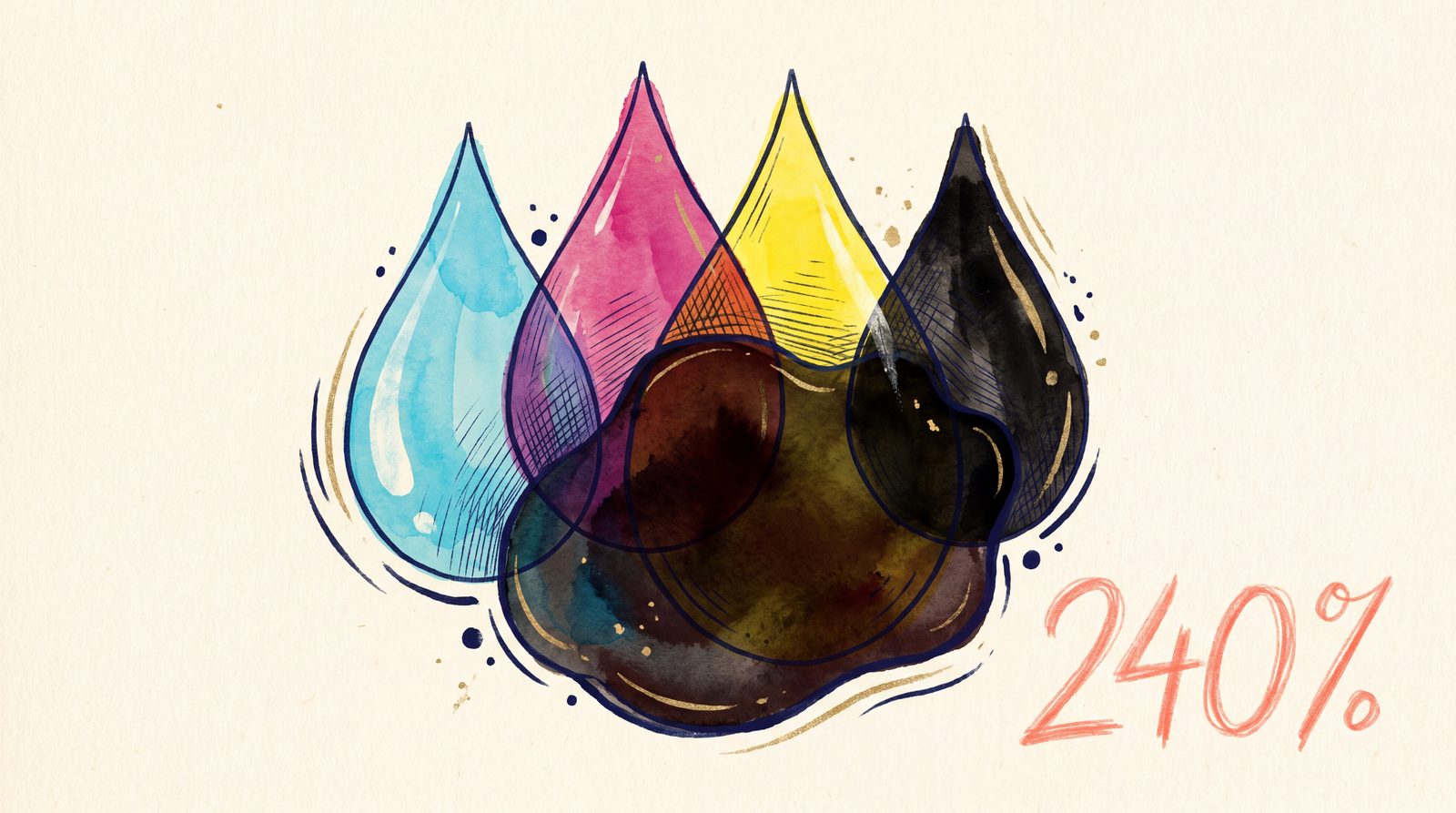
If your IngramSpark or KDP file has been rejected and the error message had words like “ink coverage,” “TIC violation,” or “ink limits exceeded,” you’ve hit the most common print rejection cause that nobody bothers to explain.
Total Ink Coverage rejected three of my first four IngramSpark uploads. I had no idea what it was. I assumed I’d done something with bleed wrong. Here’s what I wish someone had told me on day one.
What Total Ink Coverage actually is
Print presses lay down four ink colors on top of each other to make every other color: cyan, magenta, yellow, and black (CMYK). Each ink is laid down at some percentage from 0 to 100.
Total Ink Coverage (TIC) is the sum of all four ink percentages on a single point.
- 0% black on plain paper = 0% TIC
- Pure black ink only = 100% TIC
- Heavy black with all colors mixed in = up to 400% TIC
The catch: when you specify “rich black” in a design tool to get that deep, dark black look, the tool often defaults to combining all four inks at 100%. That’s 400% TIC.
Why printers reject high-TIC files
Three reasons:
-
Wet ink physics. Each ink layer has to dry before the next one is applied. At 400% TIC, the paper is so saturated that pages stick together coming off the press. Whole jobs get destroyed.
-
Color shift. Stacked inks at high coverage saturate beyond what the press can compensate for. Your “rich black” prints as a muddy charcoal with a tint shift toward whichever ink dried last.
-
Paper stretching. High ink coverage swells the paper fibers, which throws off registration and bleeds beyond your trim marks.
Different platforms have different limits:
| Platform | Max TIC | Notes |
|---|---|---|
| IngramSpark (uncoated) | 240% | Tightest limit, most rejections |
| IngramSpark (coated) | 280% | For premium color books |
| KDP Print | 260% | Slightly more forgiving |
| B&N Press | 240% | Same as IngramSpark uncoated |
| Draft2Digital | 240% | Same |
If your file targets all four, 240% is the limit you have to design for.
Where high TIC sneaks in
Three of the most common sources:
1. Affinity Publisher’s “Rich Black” preset
Affinity has a built-in color called “Rich Black” that defaults to C:75 M:75 Y:75 K:100. That’s 325% TIC. Every time you used it for body text or headers, you created a TIC violation.
Affinity won’t warn you about this in the design tool. It only matters when you export to PDF/X-1a and submit to a printer.
2. Photoshop’s default “Black” swatch
If you create a black rectangle in Photoshop and the document is in CMYK mode, the default black is often 100/100/100/100 — 400% TIC. Pure printable disaster.
3. Photographs converted from RGB to CMYK badly
If you shot a photo at high ISO and it has a deep black sky, the RGB-to-CMYK conversion can produce a 280-320% TIC region in the dark areas. The image looks fine on screen and in low-stakes print, but a print-on-demand press rejects it.
How to fix it
There are four real options.
Option 1: Replace rich black with composite black
The cleanest fix. Anywhere you’ve used a heavy black, replace it with one of:
- Composite Black: C:5 M:5 Y:5 K:95 = 110% TIC. Looks identical to rich black for body text.
- K-only Black: C:0 M:0 Y:0 K:100 = 100% TIC. The traditional newspaper-style black, perfect for body text.
- Rich Black (printer-safe): C:60 M:40 Y:40 K:100 = 240% TIC. The deepest legitimate “rich black” before you hit IngramSpark’s limit.
Use Find/Replace in your design tool to swap them out across your manuscript.
Option 2: Use an ink-limit conversion
Both Adobe Acrobat Pro and Ghostscript can re-process a PDF to clamp TIC at a specific limit. The conversion lowers ink percentages everywhere they exceed the limit, leaving the colors visually similar but the ink load safe.
Adobe charges $240 a year. Ghostscript is free, but command-line.
BookReady’s PDF compliance scanner wraps Ghostscript in a web interface and clamps TIC to whatever the target platform requires. Free to scan; $9 once or unlimited Pro for the auto-fix.
Option 3: Manually adjust photographs
If a single photo is the problem, open it in Photoshop, GIMP, or Affinity Photo, switch to CMYK mode, and use Curves to darken only the K (key/black) channel while pulling down C, M, and Y in the deep-shadow regions.
This is fiddly. Worth doing for a key cover image. Not worth doing for 200 photos in an interior.
Option 4: Just don’t use heavy color blocks
If you’re doing a black-on-white novel interior, the entire issue is academic. TIC violations only matter for:
- Heavy black text or color blocks
- Full-bleed background colors
- Photo-heavy interiors (cookbooks, photo essays)
- Cover designs
For a typical novel interior, the only thing that’ll trip you is if you used Rich Black for chapter headings.
Quick check before you upload
Before sending your file to IngramSpark or KDP, run through this checklist:
- [ ] Open your PDF in Adobe Acrobat → Output Preview → check max TIC reading
- [ ] If you’re using Affinity Publisher: search the document for “Rich Black” swatches
- [ ] If you’re using Photoshop: look at the Channels panel and check the K channel doesn’t max out
- [ ] If you have a cover with deep-color backgrounds: check the corners and edges where ink stacks
- [ ] Or: drop the file into BookReady’s free scanner and let it tell you exactly which page has TIC > 240%
The frustrating part
IngramSpark’s rejection email almost never tells you which page or which area exceeded the TIC limit. You have to find it yourself. This is one of the reasons indie authors burn through five or six upload attempts before getting accepted.
The free BookReady scanner gives you the page numbers and approximate location of every TIC violation in a single 30-second report. I built this tool because I lived through the alternative for two years.
TL;DR
Total Ink Coverage is the sum of CMYK ink percentages on a single point. IngramSpark caps it at 240%. Most rejections come from “Rich Black” presets, raw Photoshop blacks, or RGB-to-CMYK conversion of dark photos. Fix it by replacing rich black with composite black (5/5/5/95), running an ink-limit conversion through Acrobat or Ghostscript, or using a free TIC-aware scanner.
Don’t pay Adobe $240 a year for this. There are free options. BookReady is one of them.
— Tiffany at BookReady